
Your Home Screen, Explained
Home is your money at a glance. Here's every part of it, what it does, and where to learn more. The numbers in the pictures are sample numbers.
The Top of Home
This is Home for a VA / Freelancer. Other profile types won't see the Currency Ticker (pin 1) unless they turn it on in Profile.
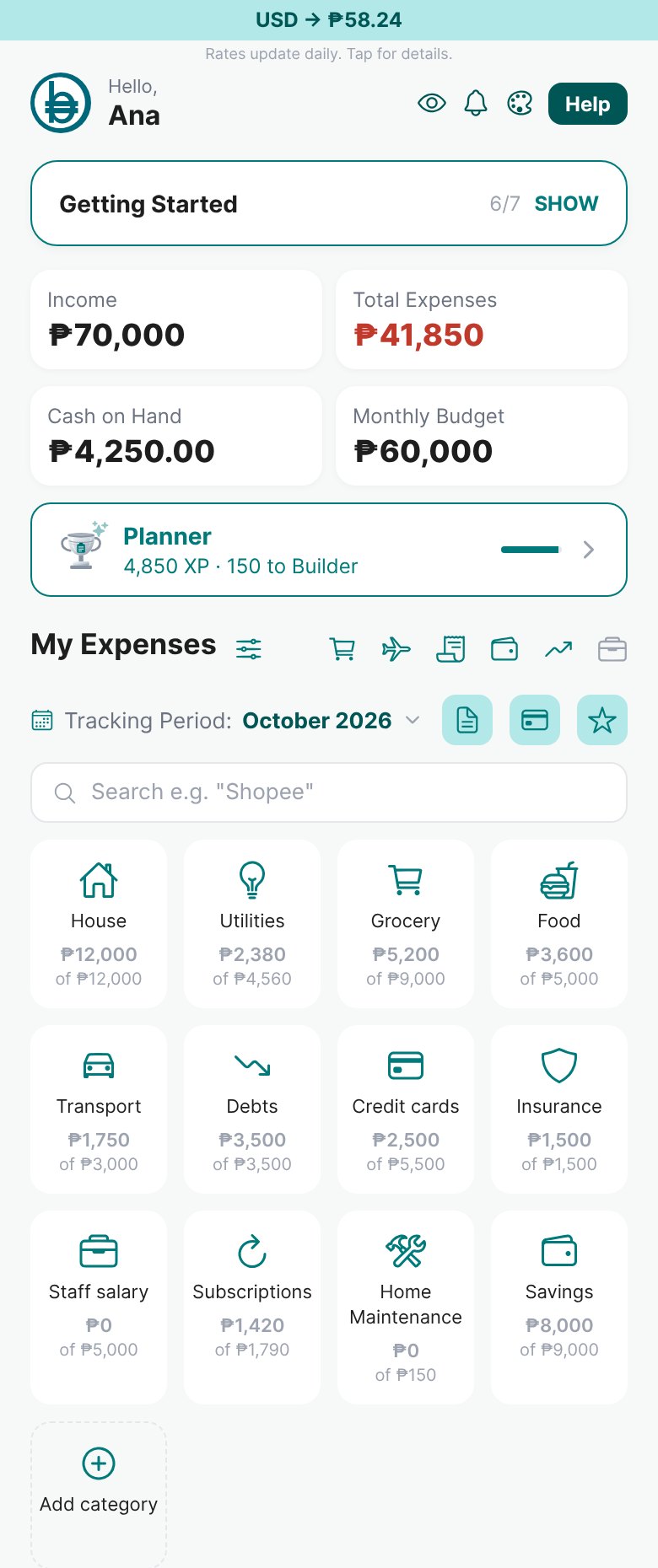
- 1Currency Ticker
Today's exchange rate, like USD → ₱. Tap it to see other currencies. On by default for VAs and freelancers.
Read: Choosing Your Profile Type → - 2Quick buttons
The eye hides your amounts when people are around. The bell shows Budgett updates. The palette changes your app color. Help reaches Budgett Support.
- 3Getting Started
Your first-steps checklist. Each step checks itself off when you do it. It goes away when everything is done.
Read: Your Getting Started Checklist → - 4Your number cards
Income, Total Expenses, Cash on Hand, and Monthly Budget for this month. Tap one to open it. Pick which cards show in Profile → Manage Home Screen.
Read: Understanding Your Expenses → - 5Your rank
Your rank and XP. Good money habits earn XP and move you up. Tap to see the ranking.
Read: How Budgett XP and Ranking works → - 6Manage categories
Hide, reorder, or add categories.
Read: Understanding Your Expenses → - 7Shortcuts
One tap to the Grocery SuperList, Travel (if turned on in Profile), Bills, Savings, and Net Worth. The last icon is Business, coming soon.
Read: How Grocery SuperList works → - 8Tracking Period
The month you're looking at. From the 16th, you can switch to next month and plan it.
Read: Planning your budget for next month → - 9Reports
Your Financial Summary for the month, your Debt Summary, and your XP Report. The first two are for Plus and Pro.
Read: Budgett Reports: Financial, Debt and XP → - 10Search
Type what you bought, like "Shopee", and Budgett shows which category it belongs to.
- 11My Expenses
One tile per category, with what you spent out of your budget. Tap a tile to see its sub-categories, add expenses, and set budgets.
Read: Understanding Your Expenses → - 12Add category
Show a category you don't see yet.
The Bottom of Home
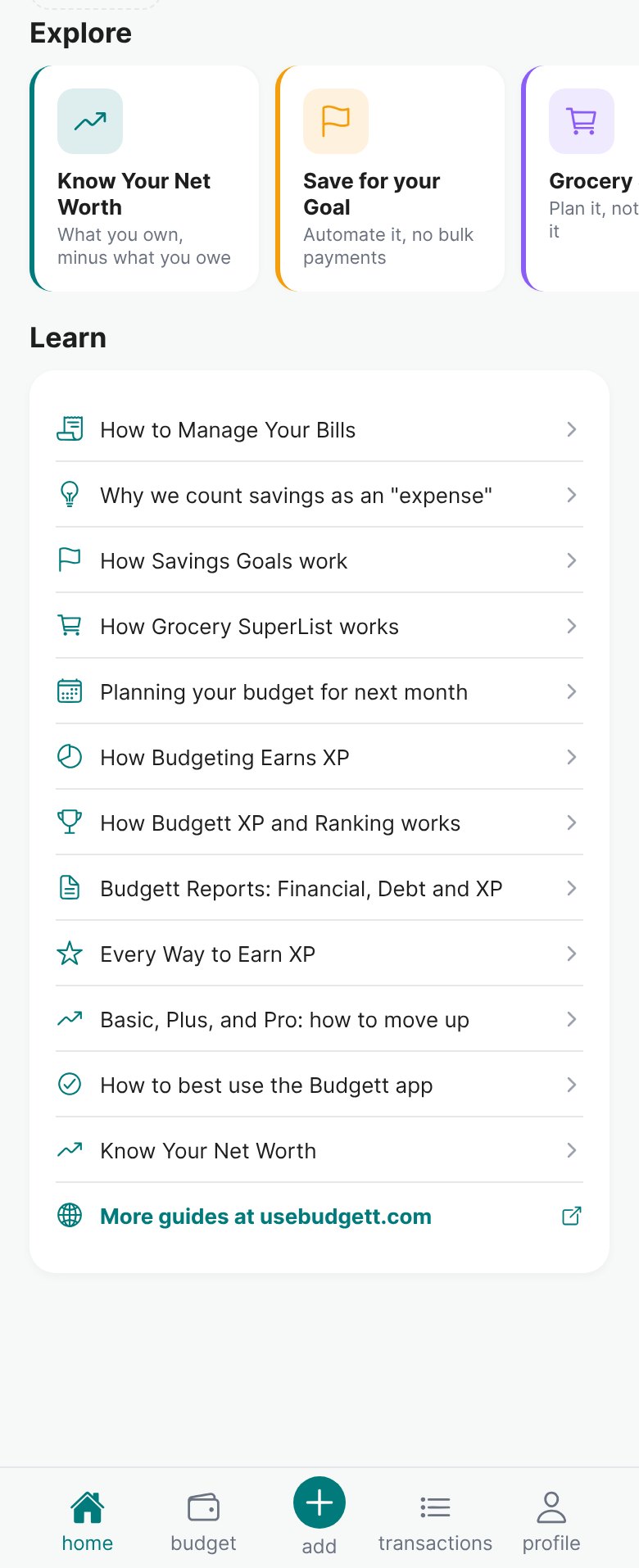
- 13Explore
Short tours of Budgett features you might not have tried yet. Swipe for more.
- 14Learn
Guides inside the app. Read one all the way through to earn XP.
Read: Every Way to Earn XP → - 15More guides
Opens all the guides on usebudgett.com, including the ones you're reading now.
- 16The + button
The fastest way to log money: an Expense, Income, a Transfer between your accounts, or a Loan you received.
Read: How to Manage Your Income → - 17The bottom menu
Home, Budget (budget, spending, bills, income, savings, and net worth), Transactions (every entry, with filters), and Profile.
Read: What's in Your Profile →
Open Home and tap the eye once. Your amounts hide. Tap it again to bring them back. Now you know how to check your money in public without showing it.
More guides
The Calculator, Explained
A picture tour of the Calculator: logging expenses, income, transfers, and loans in seconds.
How to best use the Budgett app
The small daily and weekly habits that make Budgett useful, not just another app you forget.
Planning your budget for next month
Plan next month's budget and expected income before it starts, so day one has a plan.