
Your Getting Started Checklist
The Getting Started checklist on Home is the fastest way to learn Budgett. Each step takes a minute or two, sets up something you'll use every day, and shows you where things are. You don't have to finish it, but people who do get Budgett working for them right away.
Why It's Worth Finishing
- You learn your way around. Every step takes you to a different screen: Savings, Cash on Hand, Income, a category, Bills, and Grocery. By the end, you've visited every main part of the app.
- Your numbers are right from day one. Budgett can only tell you what's left if it knows what you have, what came in, and what goes out.
- Logging gets fast. With your accounts, income, and categories set up, logging a purchase takes a few seconds, because everything you need to pick is already there.
- It's optional. Skip any step and Budgett still works. You can come back to it anytime.
The Checklist, Step by Step
This is the checklist for a new Basic member who has already added one savings account. Tap any step to jump to the right screen.
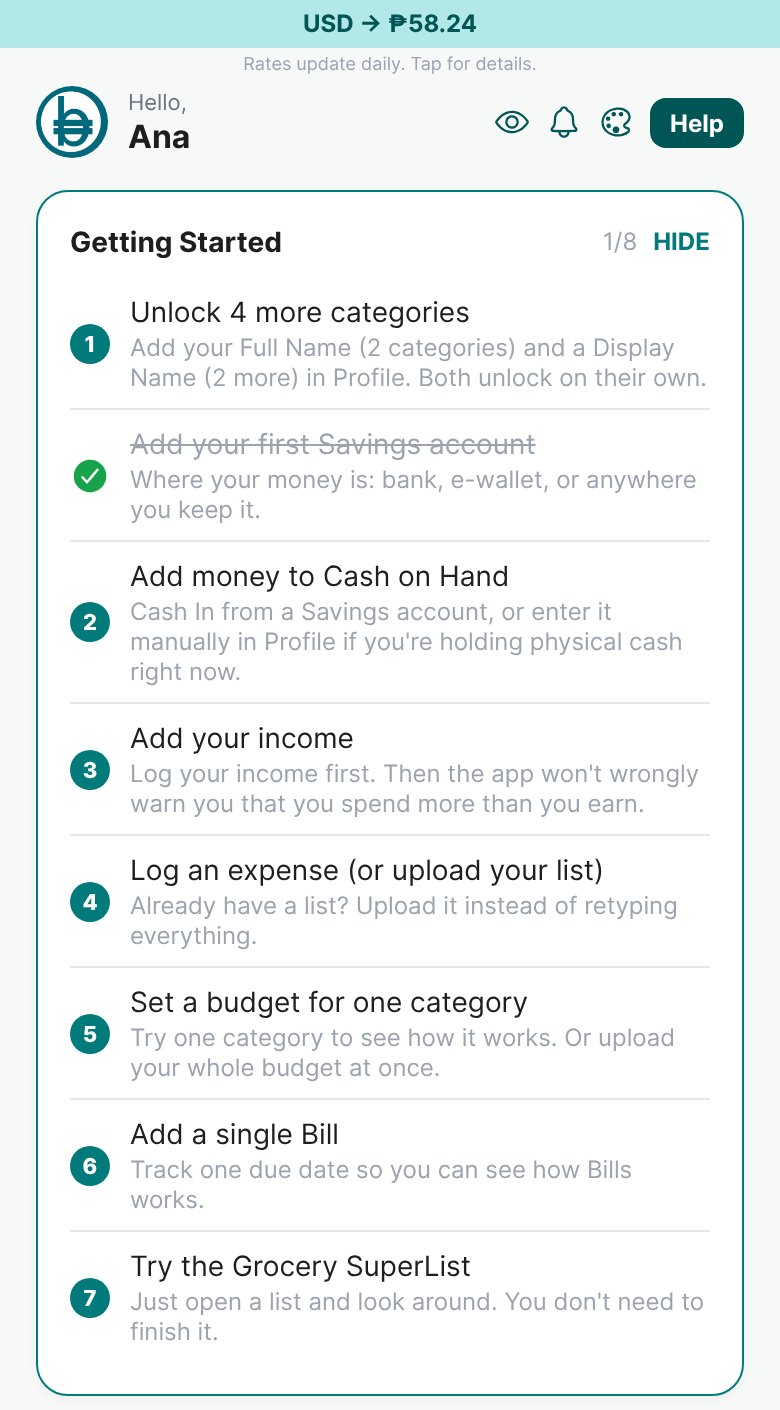
- 1Your progress
How many steps are done, like 1/8. HIDE folds the card while you work. Tap SHOW to open it again.
- 2Unlock 4 more categories (Basic only)
Go to Profile → Profile. Add your Full Name to unlock Entertainment and Shopping, and a Display Name to unlock Subscriptions and Credit Cards. Free, and they unlock right away.
Read: Managing Your Categories → - 3Add your first Savings account
Where your money is: a bank, e-wallet, or co-op. Type its real balance today. Income and expenses can then move money in and out of it.
Read: Savings Accounts, Cash on Hand and Transfers → - 4Add money to Cash on Hand
The cash in your wallet. Tap I withdrew cash to move money from an account, or I already have cash to type what's in your wallet now.
Read: Savings Accounts, Cash on Hand and Transfers → - 5Add your income
Log the money that came in this month. Do this before you log expenses, so Budgett doesn't wrongly warn you that you spend more than you earn.
Read: How to Manage Your Income → - 6Log an expense (or upload your list)
Log one real purchase with the + button. Already keep a list? Upload it instead of retyping it.
Read: The Calculator, Explained → - 7Set a budget for one category
Pick one category you spend on every month, like Grocery, and set a budget. Or upload your whole budget plan at once.
Read: Your Budget Tab, Explained → - 8Add a single Bill
Set a due date on one bill, like electricity. You'll see how reminders and the Bill List work.
Read: How to Manage Your Bills → - 9Try the Grocery SuperList
Just open a list and look around. You don't need to finish a trip for this step to count.
Read: How Grocery SuperList works →
How the Checklist Works
- Each step checks itself off the moment you really do it. There's nothing to tick by hand.
- Once a step is checked, it stays checked, even if you later delete that account or bill.
- The numbers count only the steps still left, so the next one to do is always number 1.
- When every step is done, the card disappears for good.
- Plus and Pro members don't see the "Unlock categories" step. They already have every category.
Do the steps in order. Accounts and cash first, then income, then expenses. That order is what keeps your numbers right from the very first day.
Open Home now and do just the first unchecked step. It takes a minute. Tomorrow, do the next one.
More guides
Choosing Your Profile Type
The 4 profile types, what each one changes in the app, and how to switch when your work changes.
Your Home Screen, Explained
A picture tour of Home: every card, button, and shortcut, and what each one does.
The Calculator, Explained
A picture tour of the Calculator: logging expenses, income, transfers, and loans in seconds.