
The Calculator, Explained
The Calculator is the fastest way to log money in Budgett. One screen, four tabs: Expense, Income, Transfer, and Loan. Here's every part of it. The numbers in the pictures are sample numbers.
How to Open It
Tap the + button in the middle of the bottom menu. On Budgett Web, click Log money at the top left. Pick a tab at the top for what you're logging, type the amount on the keypad, and tap Save.
Expense: Money You Spent
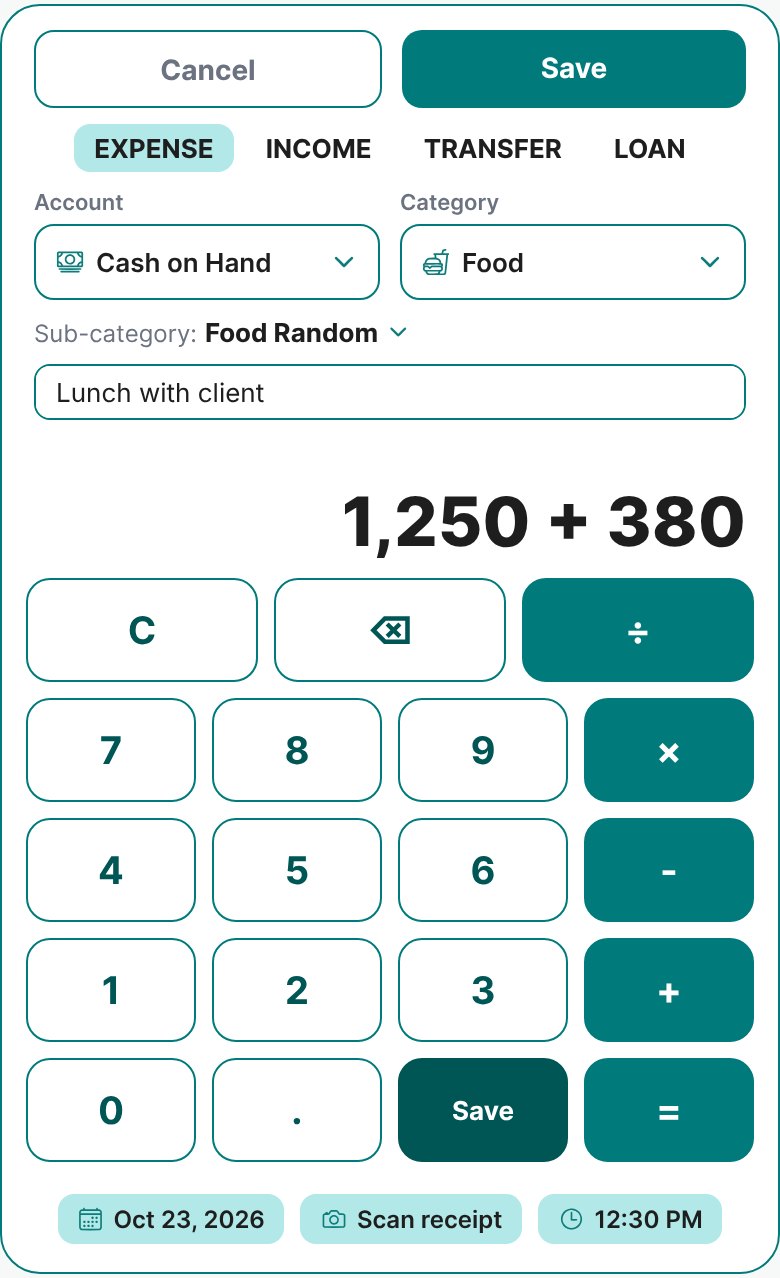
- 1The 4 tabs
Expense, Income, Transfer, and Loan. Pick one before you type.
- 2Account
Where the money came from: Cash on Hand, a bank or e-wallet, or a credit card. That account goes down by the amount.
Read: Savings Accounts, Cash on Hand and Transfers → - 3Category
What kind of spending it was, like Food or Transport.
Read: Understanding Your Expenses → - 4Sub-category
The exact item inside the category. You can create a new one from this list.
- 5Note
Optional. A few words to help you remember, like "Lunch with client".
- 6The amount
Shows everything you typed, like 1,250 + 380. Tap = to see the total (₱1,630). If you tap Save first, Budgett saves the total too.
- 7Clear and back
C clears everything. The back key deletes the last number.
- 8Math keys
Add, take away, multiply, and divide. It works like a basic calculator, left to right. Handy for splitting a bill: ₱1,500 ÷ 3.
- 9Save
Saves the entry. The big Save button at the top does the same.
- 10Date and time
Logging something from earlier? Change the date or time. It can't be in the future, and it has to be this year.
- 11Scan receipt
Coming soon: take a photo of a receipt instead of typing.
Income: Money You Received
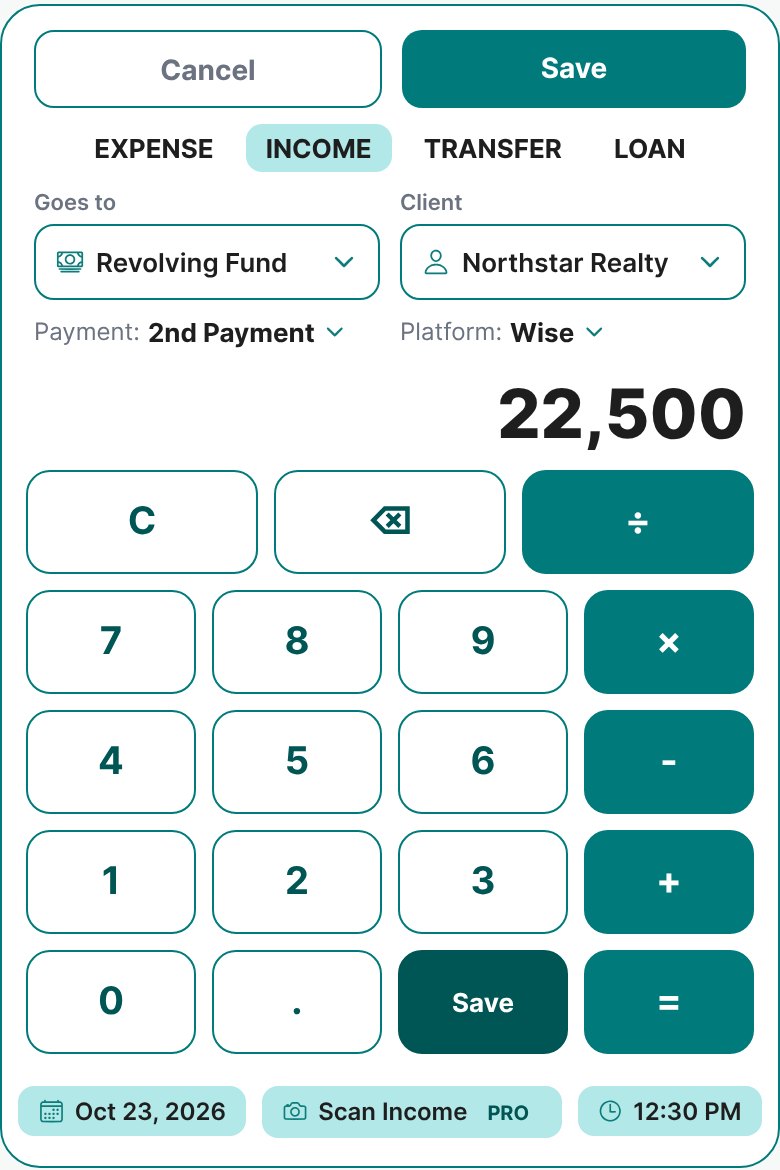
- 12Goes to
Where the money landed: Cash on Hand or one of your accounts. That account goes up by the amount.
- 13Client
Who paid you. This word changes with your profile type: Client, Business, or Employer.
Read: Choosing Your Profile Type → - 14Payment
Which payment slot this is, like 2nd Payment. Use + to add another slot.
Read: How to Manage Your Income → - 15Platform
How the money came, like Wise or PayPal. Optional. Add your own with +.
- 16The amount
What you received after fees, the amount that really landed in your account.
- 17Scan Income
Coming soon in Pro: read a Wise, PayPal, or payroll screenshot for you.
Transfer: Moving Your Own Money
A transfer isn't spending and isn't income. It just moves money between your own accounts, so your totals stay right.
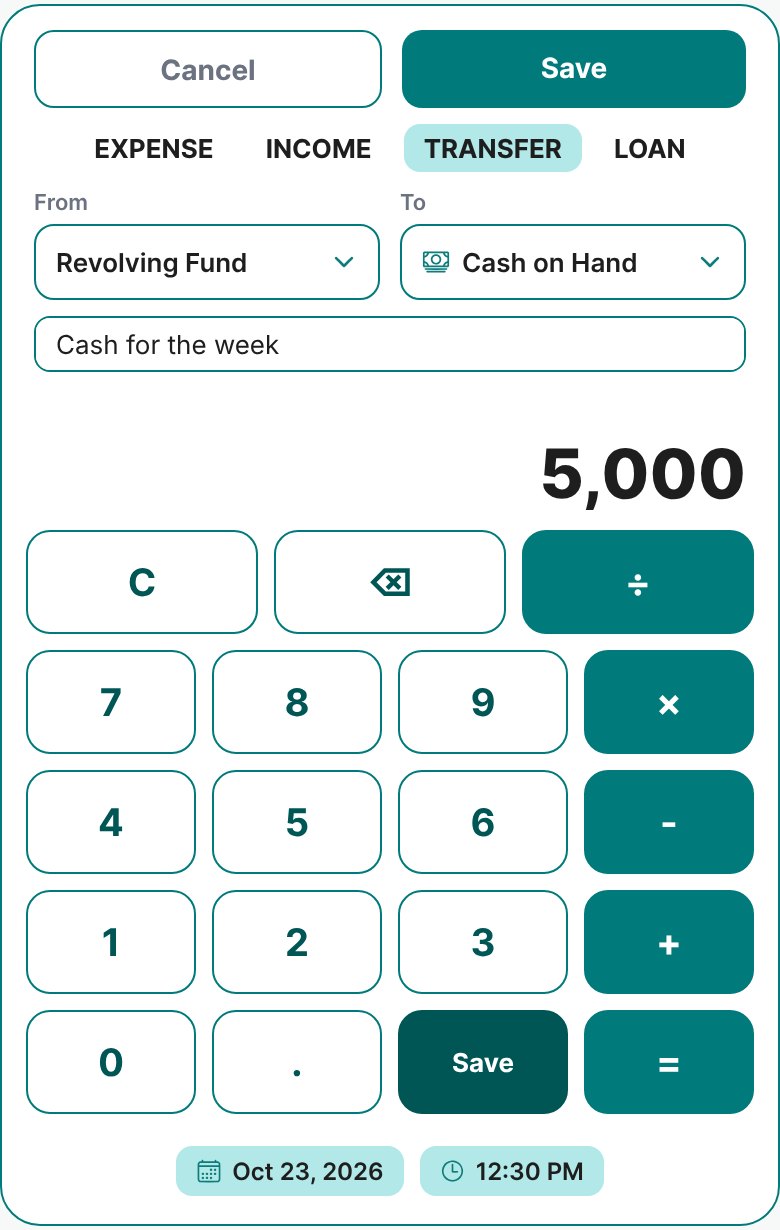
- 18From
The account the money leaves, like your bank.
- 19To
Where it goes, like Cash on Hand when you withdraw from an ATM, or GCash when you top up.
Read: Savings Accounts, Cash on Hand and Transfers → - 20Note
Optional, like "Cash for the week".
- 21The amount
How much you moved. Both accounts update right away.
Loan: Money You Borrowed
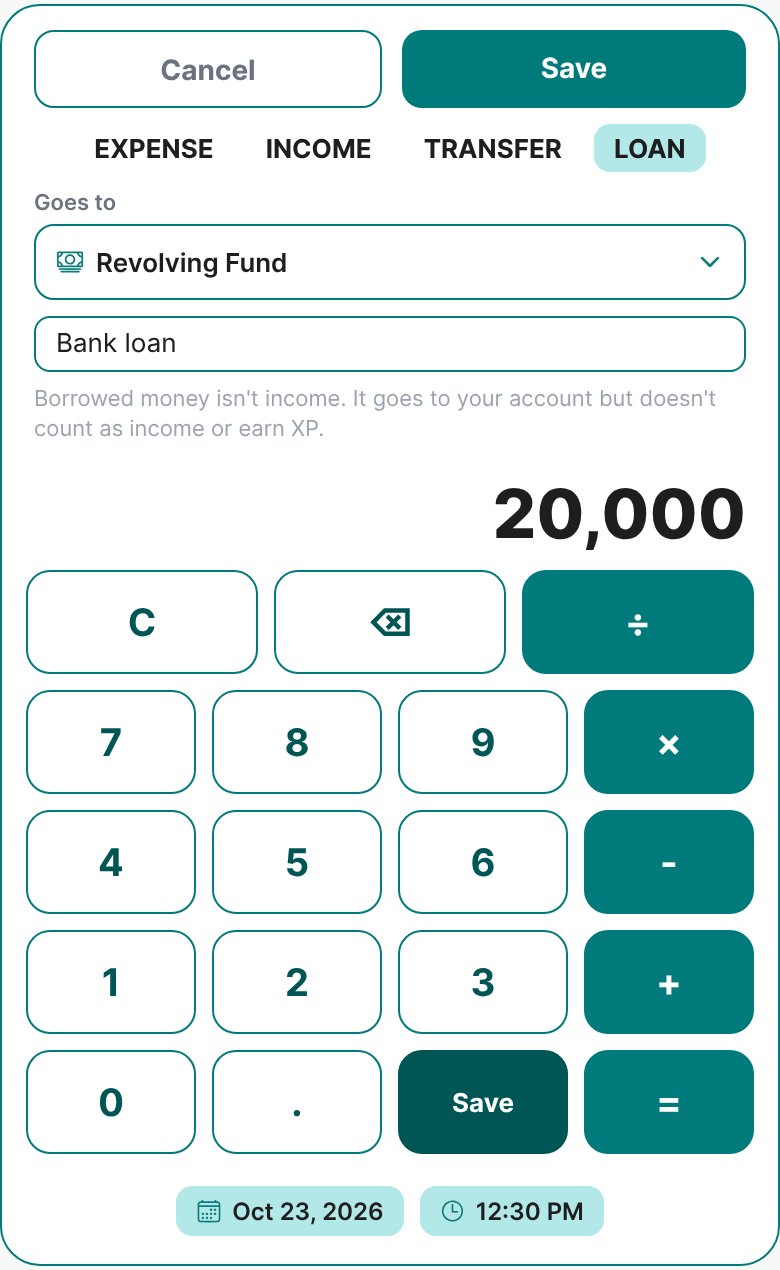
- 22Goes to
The account the borrowed money landed in.
- 23Loan from
Who lent you the money, like a bank, a loan app, or a relative.
- 24Not income
Borrowed money goes into your account, but it isn't counted as income and earns no XP. Budgett then helps you add it to your debts.
Read: Tracking Debts and Payment Plans →
Closed the Calculator by mistake? Open it again within 5 minutes, and everything you typed is still there. After 5 minutes, it starts fresh.
Next time you buy something, log it right away with +. It takes less than 10 seconds, and your budget stays true all month.
More guides
How to best use the Budgett app
The small daily and weekly habits that make Budgett useful, not just another app you forget.
Planning your budget for next month
Plan next month's budget and expected income before it starts, so day one has a plan.
Your Budget Tab, Explained
A picture tour of the Budget tab: every number, card, and button, and what each one tells you.